
When Windows says a USB device is not recognised, the cause is usually a bad port, cable or hub, a stuck driver, or a Windows power-saving setting. Work through the checks below in order, from the 30-second ones to the Device Manager ones, and most drives, printers, mice and keyboards come back without any repair. If the drive holds files you can’t replace, read the section on when to stop first.
TL;DR
- Try a different USB port, a different cable and a different computer first. That one test tells you whether the fault is in the PC or the device.
- Check Disk Management (right-click Start) and Device Manager. A drive that shows there but not in File Explorer often just needs a drive letter.
- Turn off USB power saving for the USB Root Hubs and reinstall the USB controller drivers, then restart.
- Don’t format or run repair commands on a drive that holds files you need. Stop and get the data recovered first.
- If nothing shows up at all, on any computer, the hardware has likely failed and it is time to call a technician.
Table of Contents
- What the error actually means
- Quick checks that fix most cases
- Check whether Windows can see the device at all
- Stop Windows switching your USB ports off
- Reinstall the USB drivers
- Built-in repair tools
- BIOS and UEFI settings
- When Windows says the drive needs formatting
- When to stop and get help
- Which fix for which symptom
- Get it sorted by a Perth technician
- FAQ
- Sources
What the error actually means
The message appears when Windows senses that something has been plugged in but can’t read what it is. It may say the last USB device malfunctioned, or that a device descriptor request failed. It does not tell you whether the problem is the device, the cable, the port or Windows itself.
HP’s support guide lists the common causes of USB recognition problems: damaged ports or cables, driver conflicts or outdated drivers, system configuration problems, power management settings, Windows update issues and USB controller faults. Microsoft’s own troubleshooting page adds corrupt USB drivers, missing updates and the drive entering selective suspend to the list.
That is a long list, but the fixes are ordered by effort. Start at the top.
Quick checks that fix most cases
Do these before opening any Windows menus. Each takes under a minute.
- Unplug, wait, replug. Remove the device, wait a minute, then plug it back in. Microsoft’s first resolution step for an external drive is to unplug the cable, wait one minute and reconnect.
- Try every port. Test USB 2.0 and USB 3.0 ports. On a desktop, use the ports on the back of the tower, which connect straight to the motherboard. Ports on the other side of a laptop often run off a different controller, so a dead side doesn’t mean a dead machine.
- Swap the cable. If the device uses a detachable cable, borrow another. Cables fail far more often than the devices they serve.
- Skip the hub. If the device is plugged into a dock, hub or monitor port, connect it directly to the computer. Both ASUS and MSI recommend removing expansion ports to see if the hub is the faulty or underpowered part.
- Test another computer. If the device fails on a second machine too, the problem is the device or its cable. If it works there, the problem is your PC’s ports, drivers or settings.
- Unplug everything else. Microsoft advises disconnecting unused USB devices and using external power where the device needs more, and on a laptop, plugging in the charger rather than running on battery.
Look at the port itself
Dust and lint build up in ports, especially on desktop towers and laptops carried in bags. Dell’s Australian support page suggests checking the port and cable for dust, debris or damage and cleaning ports with short bursts of compressed air held upright. It also says never to use water or liquid cleaners near USB ports.
A loose port, where the plug wobbles or only connects at an angle, is a hardware fault. Stop plugging things into it and use another port.
Check whether Windows can see the device at all
This step separates two very different problems: Windows sees the device but can’t use it, or Windows doesn’t see it at all.
Disk Management (for drives and memory sticks)
Right-click the Start button and choose Disk Management. How-To Geek notes that a drive should appear here even when it is missing from File Explorer. Look for a disk matching your drive’s size, then read what it shows:
| What you see | What it usually means | What to do |
|---|---|---|
| Blue bar, partition listed, no drive letter | The drive is healthy but has no letter assigned | Right-click the partition, choose Change Drive Letter and Paths, click Add and pick a letter |
| Black bar, “Unallocated” | The drive is empty and unformatted, or its partition is lost | If it held files, stop and read the data section below. If it is new or empty, right-click and choose New Simple Volume |
| “RAW” or a prompt to format | The file system is damaged or one Windows doesn’t read | Do not format yet. Recover files first |
| “No Media” or 0 bytes | The drive’s controller isn’t reporting storage | Try one other PC. If unchanged, stop |
| Nothing at all | Windows isn’t detecting the device | Move on to Device Manager and the checks after it |
The drive letter and unallocated-space steps come from How-To Geek’s walkthrough. The advice about No Media and 0 bytes follows Recoverit’s guide, which suggests trying another PC once and then stopping repeated attempts if nothing changes.
Device Manager (for everything else)
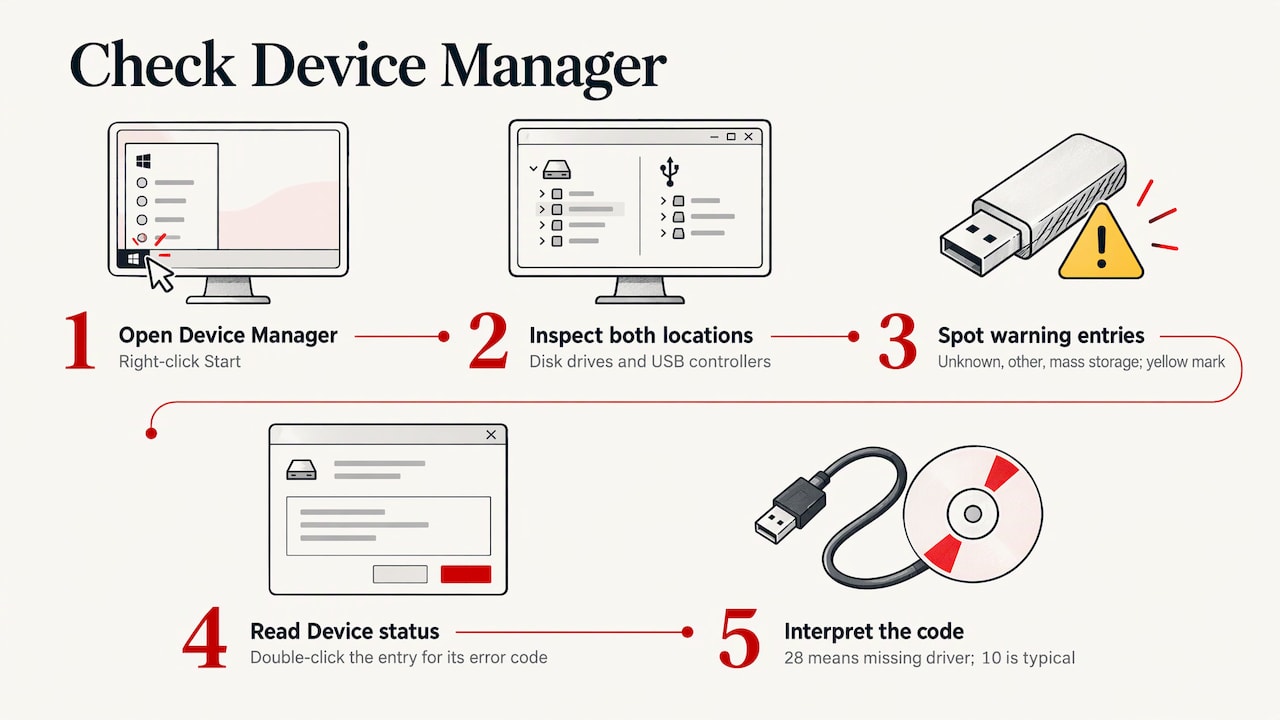
Right-click Start and choose Device Manager. Look under Disk drives and Universal Serial Bus controllers for your device. Seagate’s Australian guidance says to look for entries called unknown device, other device or mass storage device with a yellow exclamation mark. Seagate also notes that an external drive should normally be detected without drivers, software or firmware updates, so a drive that needs an “installer” to show up is a warning sign in itself.
If you see a yellow exclamation mark, double-click the entry and read the code under Device status. Microsoft says to follow the troubleshooting steps for that specific error code, except Code 28, which only means a driver isn’t installed. Seagate lists Code 10 and Code 28 as typical examples.
Stop Windows switching your USB ports off
If the error appears randomly, or only after the PC has sat idle or on battery, power management is a prime suspect. How-To Geek explains that Windows aggressively turns off USB ports to save power, which frequently causes this error.
To turn that off for the USB hubs:
- Press Win + X and choose Device Manager.
- Expand Universal Serial Bus controllers.
- Right-click each USB Root Hub and choose Properties.
- Open the Power Management tab.
- Untick Allow the computer to turn off this device to save power.
- Repeat for every USB Root Hub, then restart.
There is also a second setting. Huawei’s support page says to set USB selective suspend to Disabled in Windows power options. Find it under Control Panel, Power Options, Change plan settings, Change advanced power settings, USB settings. On a laptop, set it for both battery and plugged in.
Reinstall the USB drivers
If your device still isn’t recognised, a corrupt driver is the next candidate. You don’t need to download driver packages from random sites. Windows rebuilds USB drivers itself when it restarts.
Reinstall the device driver
In Device Manager, find the device (under Disk drives, Universal Serial Bus controllers, Other devices or Portable devices), right-click it and choose Uninstall device. Unplug the cable, restart the PC, then plug the device back in. This is the same approach Microsoft describes: uninstall the drive in Device Manager, unplug, wait a minute and reconnect.
Reinstall the USB controllers and root hubs
If none of your USB devices work, or they all fail the same way, the controllers are the target. MSI’s instructions are to right-click USB Root Hub under Universal Serial Bus controllers, choose Uninstall device, repeat for every root hub and restart the computer. ASUS gives the same reinstall method. Windows reinstalls them on startup.
If you use a USB mouse or keyboard on a desktop, keep a spare that connects another way (for example a laptop’s trackpad or a Bluetooth keyboard) before you remove every root hub at once, or you may have no way to control the machine until it restarts.
Update Windows
MSI also advises running Windows Update to install all available updates. Microsoft’s page notes that missing important updates, or an update that conflicts with an external drive, can cause the error. Install what’s pending, restart, and test again.
Built-in repair tools
Windows has a Hardware and Devices troubleshooter. Dell’s Australian guide says on Windows 11 you can reach it through Settings, System, Troubleshoot, Other troubleshooters, or by typing msdt.exe -id DeviceDiagnostic in an admin Terminal. It rarely fixes a physical fault, but it costs you nothing.
If Windows files are damaged, How-To Geek recommends running sfc /scannow and DISM /Online /Cleanup-Image /RestoreHealth in an admin Command Prompt. These repair Windows itself, not the USB drive, so they are safe even when your drive holds important files.
System Restore is another option. Dell notes it is off by default in Windows 11 and needs enabling before use, and that it removes apps, drivers or updates installed after the restore point. Use it if the problem started right after a driver or update.
BIOS and UEFI settings
If no USB device is detected on this computer, including at startup, check the firmware settings. Huawei’s guidance is to press and hold F2 at startup, confirm USB Port Enable is turned on, press F9 to restore defaults and F10 to save. Keys differ by brand: Delete and F2 are the most common. ASUS also recommends restoring BIOS defaults when the computer can’t access the USB device.
When Windows says the drive needs formatting
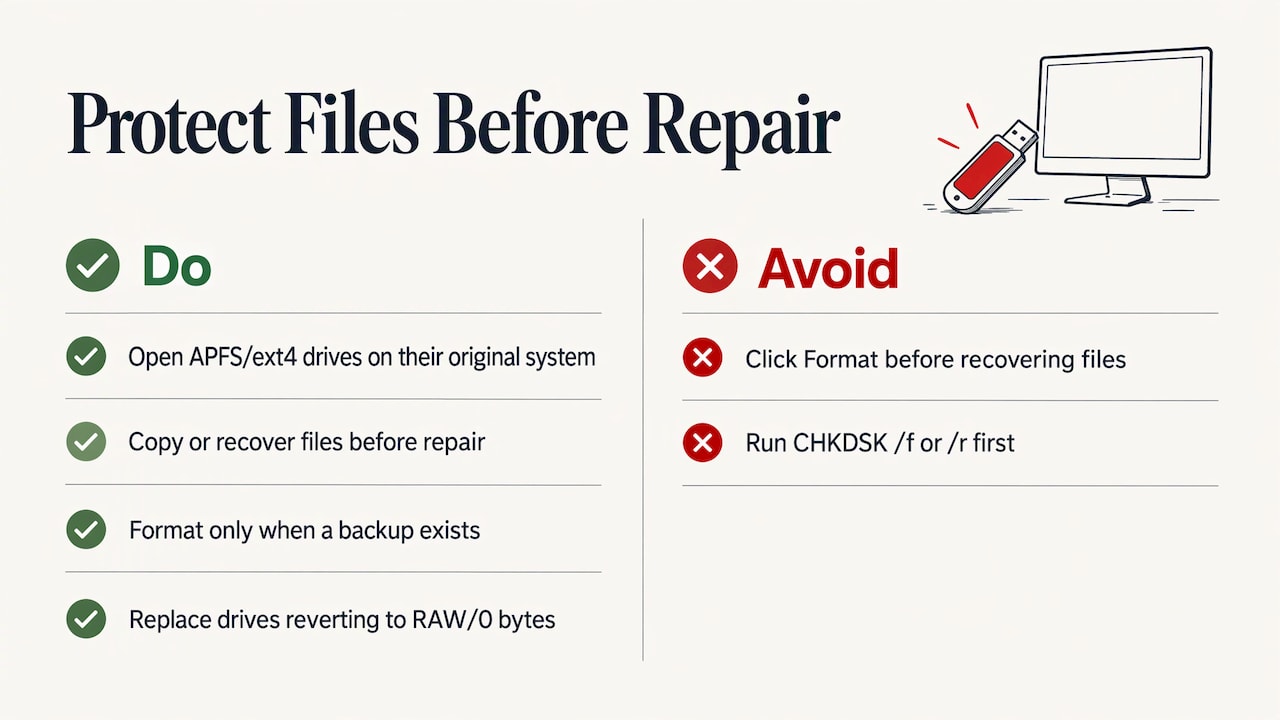
This is the moment people lose data. If Windows says you must format the disk before using it, do not click Format yet. How-To Geek is blunt about it: formatting will erase any files on the disk. The prompt can appear when the drive uses a file system Windows doesn’t normally read, such as APFS from a Mac or ext4 from a Linux PC. In that case the files are fine and the drive just needs to be opened on the system that made it.
The same caution applies to CHKDSK. Recoverit explains that CHKDSK with the /f or /r parameters can fix errors and change the file system, so you shouldn’t run it first on a drive with irreplaceable files. Copy or recover the files first, then repair.
If the drive is detected and you have a backup, formatting is a reasonable last resort. Recoverit suggests exFAT for broad compatibility or NTFS for Windows-only use, and says a drive that goes back to RAW or 0 bytes after formatting should be replaced, not trusted with important files.
When to stop and get help
Stop DIY attempts when any of these apply:
- The drive has physical warning signs such as a bent connector, a cracked case, heat, or a smell of burning.
- It has been in water. Don’t plug it in again, and read about water damage before you try anything.
- Disk Management shows No Media or 0 bytes even after trying another PC.
- The drive makes no sound, shows no light, and has no entry in Device Manager or Disk Management on any computer. Recoverit says to consider professional recovery in that case.
- The files matter more than the drive.
Every extra plug-in, format and repair attempt on a failing drive can make recovery harder. If you want to know what’s realistic, our guide to what data is recoverable after a hard drive failure explains it in plain terms, and our data recovery service handles drives and memory sticks.
If your port, not the device, is the problem (every USB device fails, on every port, even after the steps above), that points to a hardware fault on the motherboard or a failing laptop board. Our list of signs your computer needs professional repair shows what else to watch for.
Which fix for which symptom
| Symptom | Most likely cause | Try this |
|---|---|---|
| Works on another PC, not this one | Driver, power setting or port | Root Hub power settings, reinstall controllers, Windows Update |
| Fails on every PC | Device or cable | New cable, then stop if it’s a drive with files |
| Only fails through a hub or dock | Insufficient power or faulty hub | Plug directly into the computer, use a powered hub |
| Fails after sleep or on battery | Selective suspend | Disable USB selective suspend, plug in the charger |
| Fails right after an update | Driver conflict | Uninstall device, restart, or use System Restore |
| Shows in Disk Management with no letter | Missing drive letter | Assign a letter |
| Asks to format | Unsupported file system or damage | Don’t format. Recover files first |
Our view: don’t fight a failing drive
Most of the USB calls we get are fixed in minutes: a different port, a root hub setting, a driver reinstall. The ones that go wrong are the drives people kept trying. Formatting a drive that held someone’s photos, or running a repair command on a failing stick, turns a recoverable problem into a hard one.
Our rule is simple. If the files matter, stop after the quick checks and call us. We explain what we find in plain English, and our “No fix, no fee” policy means you only pay when the problem is actually fixed. We don’t charge a call-out fee, and our work and parts carry a 30-day guarantee.
Shuan
Get it sorted by a Perth technician
If you’ve been through the steps and the device still isn’t recognised, or the files on it are too important to risk, we can look at it for you. We offer on-site and remote support across Perth for Windows and Apple devices, covering computer repairs, laptop repairs, data recovery and backups. Home IT support is from $132 per hour and business IT support is from $165 per hour, with no call-out fee and a “No fix, no fee” policy.

See our pricing, book a computer repair, or arrange home IT support in Perth. For a failing laptop port, see our laptop repairs page.
FAQ
Why does my computer say USB device not recognised only sometimes?
Intermittent errors usually point to power or a loose connection. Windows can switch off USB ports to save power, so disable the power-saving option on each USB Root Hub and turn off USB selective suspend. A worn cable or a wobbly port causes the same pattern, so try a different cable and port.
How do I get a USB drive to show up in File Explorer?
Open Disk Management and look for the drive by size. If it has a partition but no letter, right-click it and assign one. If it shows as unallocated, RAW or asks to be formatted, don’t format it until you’ve recovered any files you need.
Will reinstalling USB drivers delete my files?
No. Uninstalling a device or USB Root Hub in Device Manager removes the driver software, not the data stored on your drive. Windows reinstalls the drivers when you restart. Formatting a drive, however, does erase it.
Why is my mouse or keyboard not recognised?
The same causes apply: a damaged port or cable, a driver fault or power-saving settings. Try another port, plug it in directly rather than through a hub, and test on another computer. If it fails everywhere, the device itself has likely failed.
When should I replace the drive instead of fixing it?
If a drive returns to RAW, No Media or 0 bytes after formatting, or keeps disconnecting, replace it and don’t rely on it for important files. Get any data off it first, or have it recovered if it won’t read.
Sources
- HP: How to Fix USB Device Not Recognized
- Microsoft Learn: “USB Device not recognized” error
- Microsoft Support: Fix USB-C problems in Windows
- Dell Australia: How to Fix USB Port Issues
- ASUS ROG: Troubleshooting USB Functionality Issues
- MSI: The motherboard cannot detect the USB device
- Huawei: My computer cannot identify USB devices
- Seagate Australia: USB External Troubleshooter
- Seagate: USB External Troubleshooter
- How-To Geek: Fix your USB drive not showing up
- Recoverit: USB Flash Drive Not Recognized
Filed under: Uncategorized